Selecting Plugins
Hover to zoom
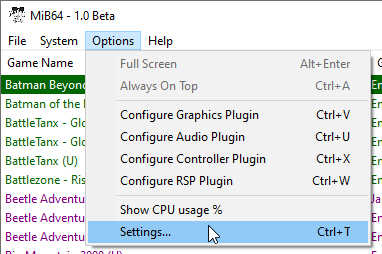
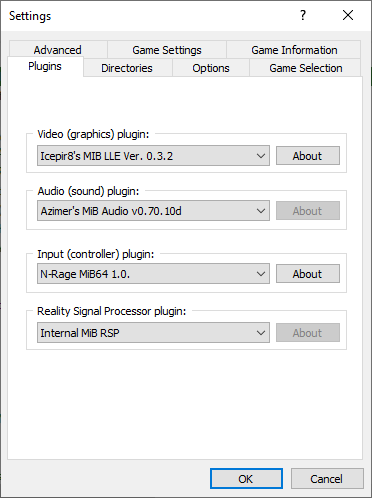
Options → Settings
The choice of plugins has a huge impact on the running of the emulator.
It is highly recommended that new users do not change plugins until they’ve used MiB64 for a while.
Change one plugin at a time so you can trace effects and isolate problems.
It’s impossible to recommend specific plugins here—it depends on:
- What plugins are available at the time
- Which games you play
- Your system specification
- Your personal preferences
You’ll need to read about other plugins, try them, ask knowledgeable users online, and decide for yourself.
Plugin Types
MiB64 supports one plugin of each type at a time.
Plugins cannot be assigned per-game.
If none of the reasons to change plugins apply to you, stick with the defaults.
Each plugin type has an “About” button next to its menu.
If the plugin supports it, this opens a dialog with author info and version.
If not, the button will be greyed out. Same applies to configuration dialogs.
Video Plugin Selection
Points:
- The video plugin interfaces with MiB64’s RSP.
You must have the correct RSP configuration for the plugin type (HLE or LLE).
Even with HLE, the RSP may pre-process graphics (e.g. Zelda backdrops).
At the time of writing, all N64 emulators use HLE video—true LLE is not available.
Choose a non-default video plugin if:
- A game is marked “Needs video plugin” and you have one that supports it
- A 3rd party plugin better supports your legacy hardware
- You have specific needs—video plugins are complex
Audio Plugin Selection
Points:
- The audio plugin interfaces with MiB64’s RSP.
You must have the correct RSP configuration for the plugin type (HLE or LLE).
Open the audio plugin configuration dialog from the Options menu.
Choose the No Audio plugin if:
- You have no sound card or it’s non-functional
- You want to disable audio for speed
- You want HLE audio
- You want advanced buffering, filtering, or stereo controls
Note: Some games won’t work with a dummy sound plugin.
For compatibility, it’s better to turn volume down.
Input Plugin Selection
Points:
- The input plugin interfaces directly with the emulator core.
- It handles input, MemPak (if supported), and other accessories like Transfer Pak or Voice Pak.
Open the input plugin configuration dialog from the Options menu.
Choose a non-default input plugin if:
- You want mouse support
- You want rapid fire, macros, or modifiers
- You want analogue emulation or control over range/threshold
- You want Force Feedback or direct support for Rumble/Transfer/Memory Pak*
*At the time of writing, only available via Adaptoid and N-Rage’s plugin or Adaptoid plugin.
RSP Plugin Selection
Points:
- The RSP plugin processes most audio and some graphics.
- MiB64 includes an internal RSP with two cores.
- The RSP interfaces with the core, audio, and video plugins (three-stage system).
Open the RSP plugin configuration dialog from the Options menu.
Saving Your Plugin Selection
After making your selection, press OK.
If a game is running, you’ll be prompted to reset it—plugins cannot be changed mid-execution.
- If you don’t want to lose progress, answer No, save your game, and return later.
- If you answer Yes, MiB64 will reinitialize all plugins and boot the game with your new selection.
Your plugin selection is saved until changed again.
If any plugin fails to initialize, you’ll receive an error—consult plugin documentation for help.