Configuration: Azimer's Legacy Audio Plugin
Hover to zoom
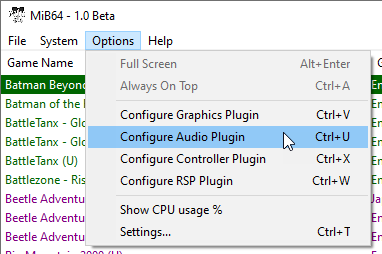
Options > Configure Audio Plugin
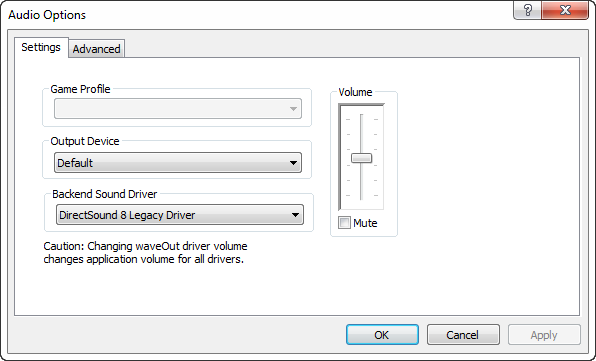
Settings Tab
Hover to zoom
This page covers configuration of the default MiB64 audio plugin — Azimer’s Legacy Audio 0.70.10.
Points:
- The audio plugin does not include an audio emulator! It must be used in conjunction with the RSP plugin.
- The RSP plugin must be configured with “send Audio Lists to Audio Plugin” disabled or the audio plugin will receive no audio data and hence you will hear no sound!
This setting is disabled (greyed out) and serves no function currently.
This enables you to output the sound to whatever device may be listed in the dropdown list of available devices.
Hover to zoom
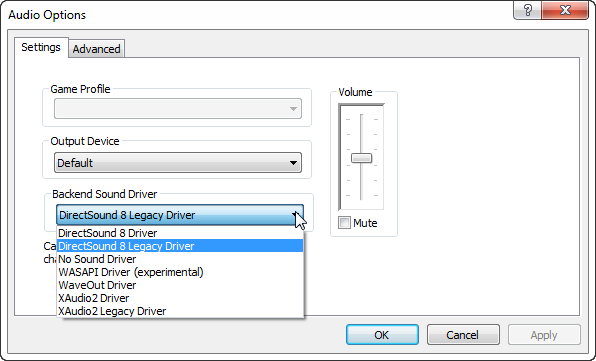
- DirectSound 8 Driver — Recommended default for Windows XP
- DirectSound 8 Legacy Driver — Use only if DirectSound 8 does not work properly
- No Sound Driver — Recommended if you do not have sound
- WASAPI Driver (experimental) — Recommended for Windows Vista or better
- WaveOut Driver — Not Recommended but most Windows compatible
- XAudio 2 Driver (default setting) — Recommended fallback when WASAPI is not available
- XAudio 2 Legacy Driver — Not Recommended
By default the XAudio2 Driver is selected. But the user can use any option via a dropdown menu.
- default setting: 50%
- generally recommended setting: user preference
Its function should be fairly obvious. You can use the Up and Down arrows, Page Up and Page Down keys, and Mousewheel as shortcuts. Setting all the way down is equivalent to muting the emulator.
This setting is global (applies to all ROMs), takes effect instantly, and is saved in the AziCfg.bin.
This checkbox is a simple toggle to mute or unmute sound.
- Check to Mute
- Un-check will return to original position when dialog is still open
If you mute and then click OK and close, when you next load and un-check, it will still be on zero. Use the volume slider to adjust the volume once again to your desired setting.
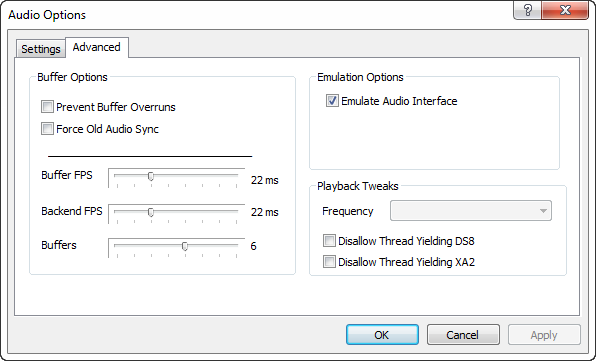
Advanced Tab
Hover to zoom
- Prevent Buffer Overruns (Checkbox)
- Force Old Audio Sync (Checkbox)
- Buffer FPS (Slider)
- Backend FPS (Slider)
- Buffers (Slider)
- Frequency (Greyedout)
- Disallow Thread Yielding DSB (Checkbox)
- Disallow Thread Yielding XA2 (Checkbox)
“Prevent Buffer Overruns (Checkbox)”
This will cause the emulation thread to slow down when the audio buffer overruns. It will pause the thread until the buffer isn’t full.
“Force Old Audio Sync (Checkbox)”
This will cause the emulation thread to slow down when the audio buffer overruns. This is different from overrun as it will copy the entirety of the buffer into output locking the thread until it is able to.
The number of milliseconds (frames) to buffer audio in the secondary buffer.
The number of milliseconds (frames) to buffer audio in the primary buffer (API level).
The number of buffers available to buffer the audio.
“Emulate Audio Interface (Checkbox)”
This setting is disabled (greyed out) and serves no function currently. Emulate Audio Interface will always be enabled and will only be skipped when the emulator does its own audio emulation.
This setting is disabled (greyed out) and serves no function currently.
“Disallow Thread Yielding DSB (Checkbox)”
A hack used to prevent the yielding of the audio thread for DirectSound8. This may smooth out audio issues.
“Disallow Thread Yielding XA2 (Checkbox)”
A hack used to prevent the yielding of the audio thread for XAudio2. This may smooth out audio issues.