Start, Stop, Reset Games
Hover to zoom
Starting Games
This section will take you through starting, stopping, changing & resetting games in MiB64.
There are several ways to start a game in MiB64:
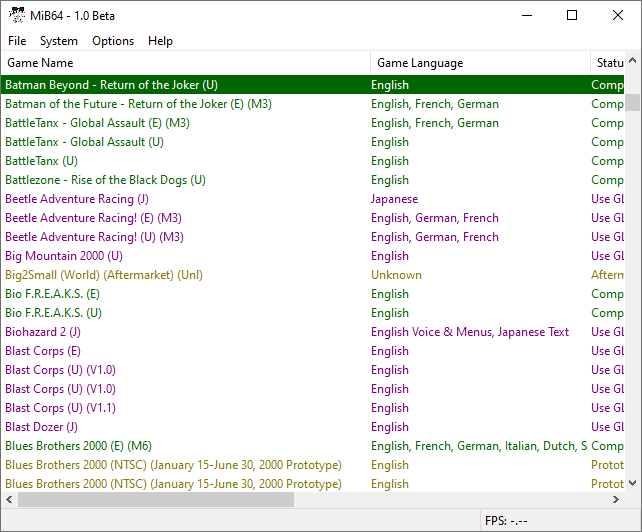
The Game Browser
This is the generally recommended method of starting games, for many reasons and you can read about the Game Browser here.
File > Open Game
It is possible to use a standard Windows file open dialogue to start games.
Go File > Open Game, browse to your game file and double click the file with the default settings the game will load and emulation will start automatically.
If you are using this method, you won’t have the feedback provided by the Browser, so you should be sure that you are opening a supported game and be aware of possible issues etc.
Recent Games Menu
Most users will have a small number of games that they play regularly.
To make it easy for you to access these games without wading through all your games, MiB64 saves a list of the most recently opened games in the File menu, under “Recent Games.”
Every time a game is started (unless it’s already the most recent), it’s added to the top of the list, and the others are all pushed down one place.
By default the list shows only the 4 most recently started games, but this is adjustable.
Recent Directories Menu
Most users will have a small number of directories that they use regularly.
To make it easy for you to access these games without wading through all your folders, MiB64 saves a list of the most recently used directories in the File menu, under “Recent Games.”
Every time a game directory is added (unless it’s already the most recent), it’s added to the top of the list, and the others are all pushed down one place.
By default the list shows only the 4 most recently added game directories, but this is adjustable.
Stopping & Changing Games
If you are finished playing and want to leave MiB64 you can simply close the emulator like any normal Windows application (use the X, or File > Exit or ALT+F4.
There is no need to End Emulation before you quit.
If you are going to be away for a short period of time you could leave the emulator paused (by default, losing window focus or minimizing the window will automatically pause for you).
MiB64 does not prompt you to save and does not save automatically on exit, so do not forget to make a state save if you want to be able to pick up exactly where you left off.
You’ll probably want to make a named save, so go System > Save As or CTRL+S to open the dialogue and type in a path and name you’ll remember.
If you want to play a different game, you can go back to the Game Browser to make your selection by choosing File > End Emulation, or you can go ahead and load it directly from File > Open or the Recent Game menu, even while the old game is running.
MiB64 will automatically End Emulation of the old game and load and start the new one (without any prompts be careful!).
Resetting Games
In case you are not familiar with the N64 console, it has a reset button.
Pressing this is equivalent to turning the power off and back on it’s just smoother and quicker.
Of course there is no direct power button equivalent on MiB64, but the reset is emulated and availble at System > Reset or Keyboard shortcut: F1
Points to note:
- There is no prompt to reset, so be careful it happens instantly. Make sure you save your game if you want to, there is no way to go back (undo).
- On reset, MiB64 checks all core settings, so if you have made any changes to the RDS or general options they will take effect now.
- After resetting, MiB64 has no memory of any state loads before the reset.
In other words, the RDRAM (the game’s memory space) is totally wiped clean.
This is significant if you are using hacks/cheat codes or have core errors do a native save, reset the game, and load through the game menus.
This is a smart dodge that can save you when your states go bad or a combination of cheat codes ruins your game.